Google crawl budget is the total number of URLs on a specific domain that search engine bots discover and index within a set timeframe.
This strict limit dictates exactly how much of your website appears in search results.
Let’s say you publish a massive directory with two million business listings. Googlebot only crawls 50,000 of your pages per day.
The rest of your database remains completely invisible to users for months.
You must manage this allowance aggressively. Control bot access to low-value pages.
This forces Google to focus entirely on your revenue-generating content.
Crawl Rate Limit vs. Crawl Demand
Crawl rate limit is the maximum simultaneous connections Googlebot makes before overloading your server, while crawl demand is Google’s desire to index your site based on popularity.
These two metrics combine to form your final crawl allowance.
Let’s say a viral social media campaign sends thousands of users to your new product line.
Google detects this surge in popularity.
It increases your crawl demand to index your new items instantly.
But your cheap hosting plan caps your server capacity.
Google hits that crawl rate limit and abruptly stops crawling to prevent a site crash.
You lose critical search visibility because your infrastructure failed to handle the spike.
How to Calculate Crawl Budget for Large Websites
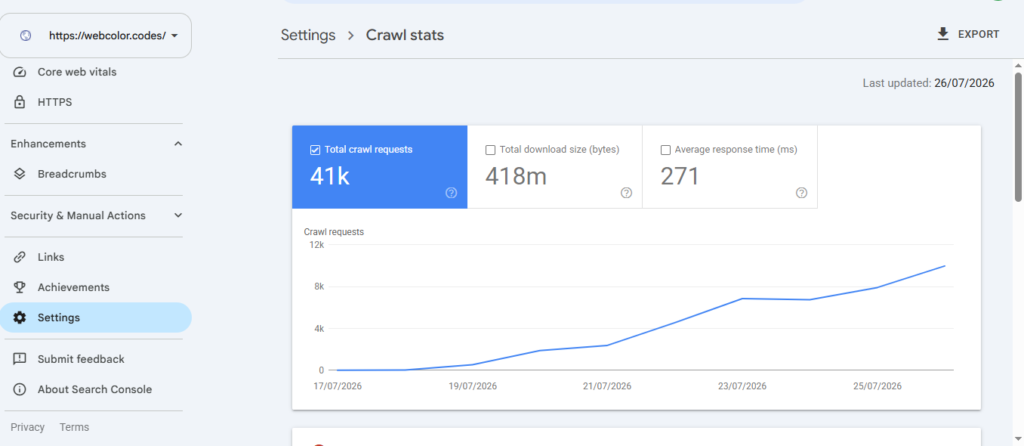
To calculate crawl budget for large websites, divide the total number of pages Google crawls daily by your total number of indexable URLs. This calculation reveals the exact number of days Google requires to process your entire site.
Let’s say your enterprise architecture includes 1,000,000 URLs.
You check your metrics and see Googlebot requests 100,000 pages every single day.
Your complete crawl cycle takes 10 days.
A cycle longer than 14 days demands immediate technical intervention.
Here is how you extract this data:
- Open Google Search Console.
- Click Settings in the left-hand sidebar.
- Click Open Report in the Crawl Stats section.
- Find the Total crawl requests number for the past 30 days.
- Divide that number by 30 to get your daily average.
As shown in this image :
3 Steps for Crawl Budget Optimization
Crawl budget optimization requires blocking parameter pages, resolving 404 errors, and eliminating long redirect chains to ensure Googlebot focuses strictly on valuable content.
This guarantees search engines process your core pages faster.
Let’s say your ecommerce store uses complex faceted search filters.
Every combination of size and color generates a unique tracking URL.
Google wastes its daily allowance scanning these duplicate parameter pages instead of your main category hubs. You stop this by blocking parameter URLs via your robots.txt file.
Then, you must eliminate redirect chains.
Bots abandon a URL immediately if they have to process multiple redirects to reach the final destination.
Find and fix these chains using Semrush:
- Open Semrush and click Site Audit.
- Enter your domain and click Start Audit.
- Click the Issues tab.
- Type “redirect chains” into the search bar.
- Click the blue link titled X redirect chains and loops.
- Click Export to download the affected URLs.
Bot Analysis Through Log Files
Bot analysis through log files reveals the exact URLs Googlebot requests from your server, highlighting the precise difference between your intended site structure and actual bot behavior. This data exposes the hidden crawl traps draining your budget.
Let’s say your XML sitemap prioritizes 500 new blog posts. You review your server logs and discover Googlebot actually spends 80% of its time hitting paginated comment sections from 2015.
Your SEO directives completely failed. You fix this by identifying the exact trap URLs in the logs and noindexing them.
Analyze your raw data using Screaming Frog Log File Analyzer:
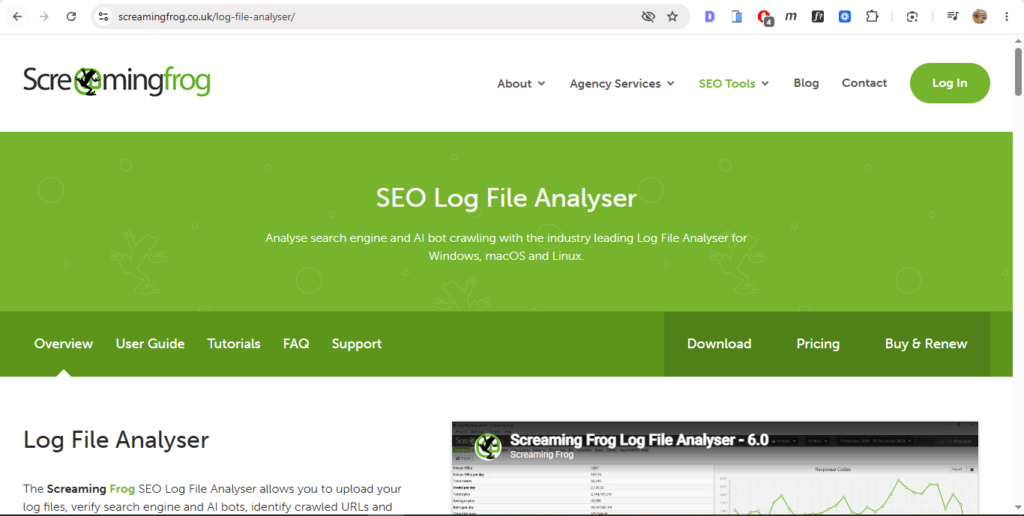
- Open Screaming Frog Log File Analyzer.
- Drag and drop your unzipped server log file into the interface.
- Click the Bots tab at the top.
- Select Googlebot from the dropdown menu.
- Click the URLs tab to see exactly which pages Google hits most often.
Automating Analysis With Cloudflare Logpush
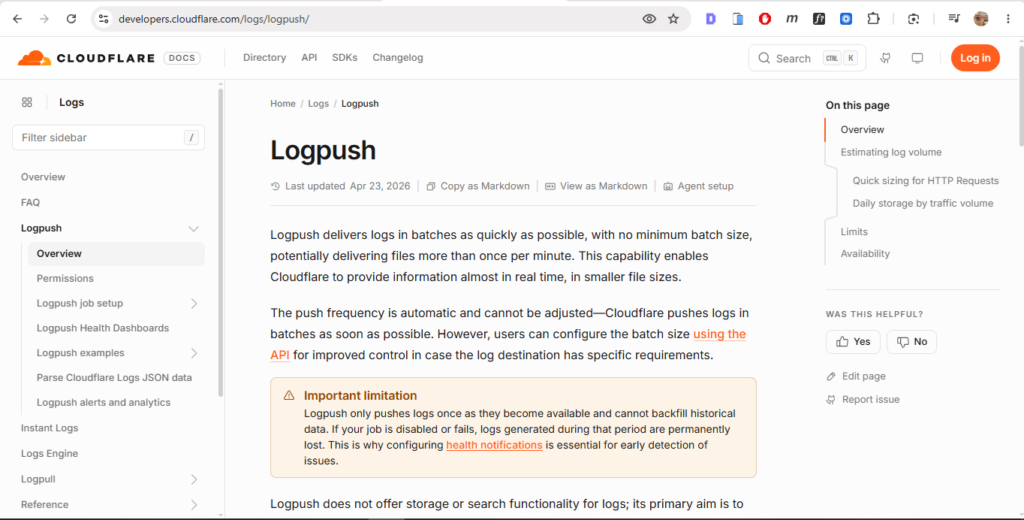
Cloudflare Logpush automates bot analysis by streaming your raw server request logs directly to a cloud storage bucket in real-time. This eliminates the tedious process of manually downloading and parsing massive server log files.
Let’s say you manage a global news publisher generating millions of hits per hour. Manual log extraction crashes your local machine. You bypass this entirely by routing the logs straight to an AWS S3 bucket. You then connect a data visualization tool to monitor Googlebot activity live.
Set up the automation using the Cloudflare dashboard:
- Log into Cloudflare and select your domain.
- Click Analytics & Logs in the left sidebar.
- Click Logpush.
- Click the Create Logpush job button.
- Select HTTP requests as your dataset.
- Select your preferred cloud storage provider destination.
- Click Save and Start to begin streaming.
This guide about Crawl Budget is part of Technical SEO Guide and you can consider the following related resources as it discusses further topics mentioned here, but in detail.
- How Search Engines Work
- Discovery In Search Engines
- Crawling In Search Engines
- Indexing In Search Engines
Updated On :